CryoCloud Picker
Description
• Automatically picks particles using a general ML model trained on a variety of datasets
Input
• Aligned/motion-corrected micrographs
Important parameters
• The refers to the model that will be used to pick the data. In most cases, the general model will perform well. However, if your particle is small AND the micrographs are densely populated (or display a monolayer), the GPCR model may offer improved results. The GPCR model was tuned to pick effectively on monolayers of GPCRs.
• The parameter sets the picking threshold. Lower values will result in more picks. When processing datasets manually, or for the first time, it can often be useful to set a low value to over-pick, and then select the optimal threshold level in the results page (see later).
• If you are picking on negative stain data, ensure that you turn the option on.
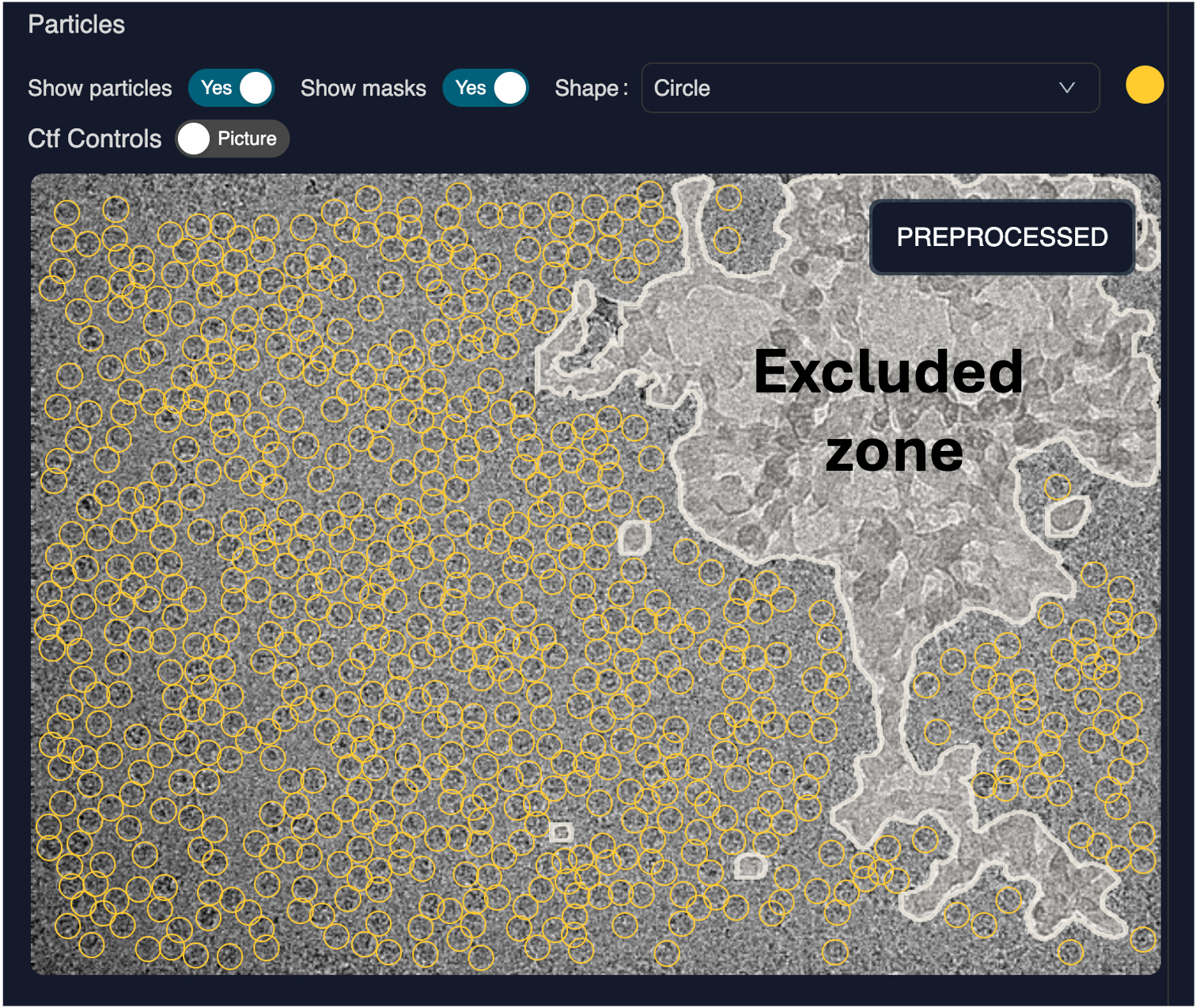
• enables junk detection and masking. When this is turned on, the job will identify regions of suspected ice contamination and mask them out, preventing picking in these areas.
Output
• Particle coordinates
Inspecting results
On completion of the job, you will have access to an interactive results page.
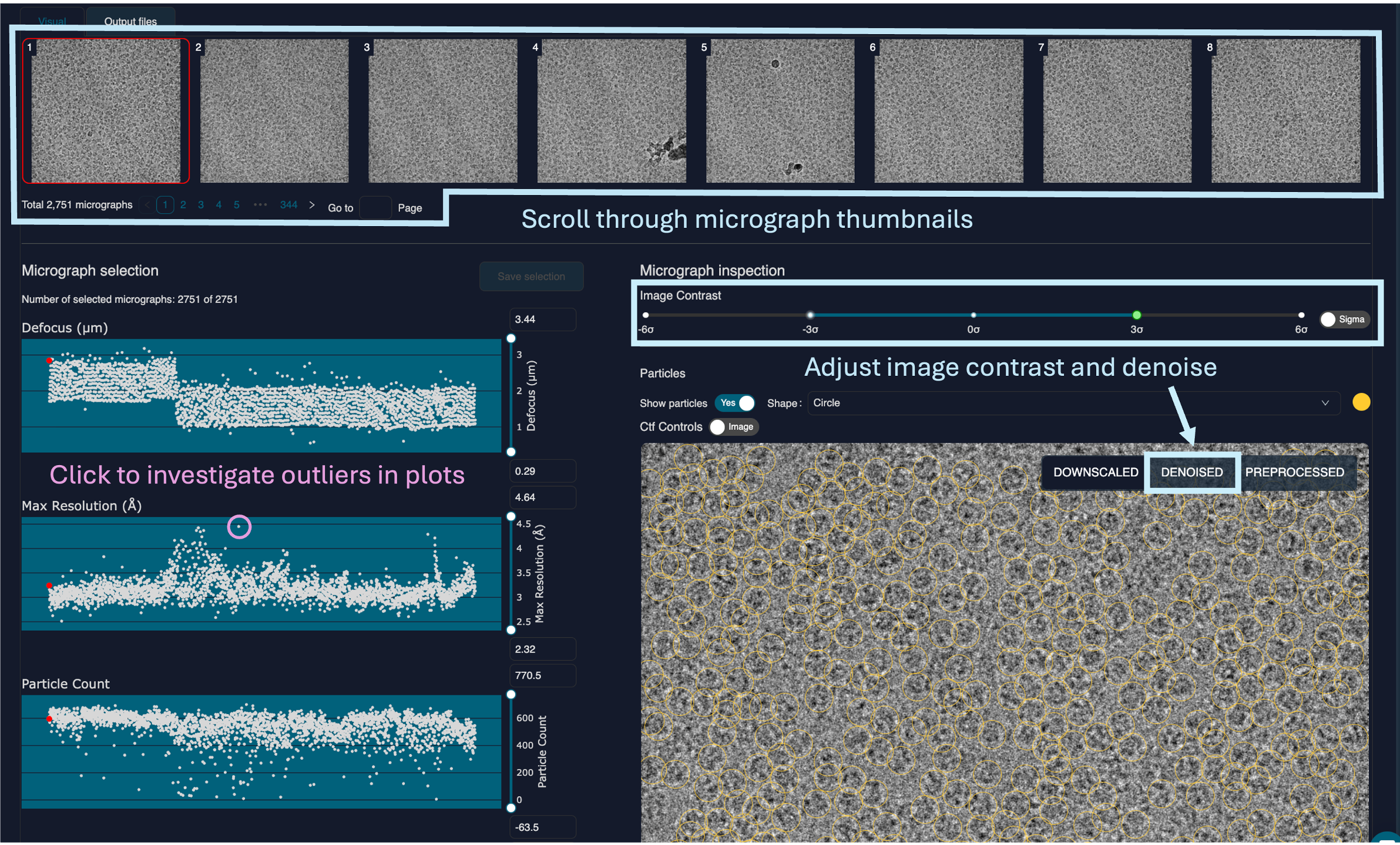
Micrograph thumbnails are displayed across the top of the screen. These can be clicked on to change the micrograph in the main inspection window. The contrast of this micrograph can be adjusted with the interactive slider. A denoised option is also available to make it easier to your particle distribution.
On the left-hand side are various scatter plots displaying micrograph metrics such as defocus, estimated resolution, particle count, ice thickness etc. Each point in the plot represents a micrograph and can be clicked to display that micrograph in the main window. This is useful for quickly inspecting outliers.
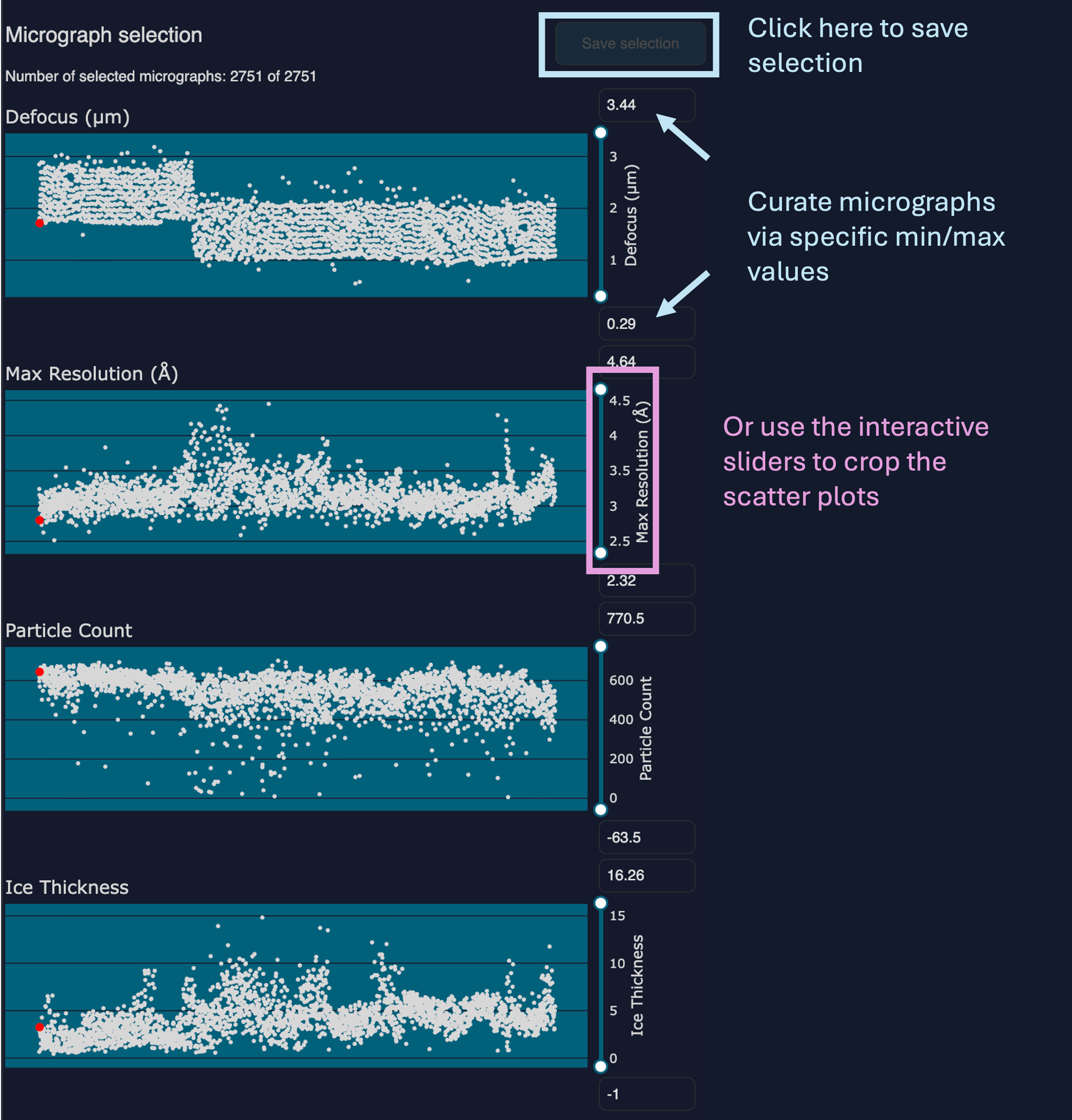
Micrographs can be curated either by specifying max/min values in the boxes to the right of the plots, or by using the interactive sliders to the right of the plots. In this way, micrographs with unfavourable properties can be discarded.
Once you have altered the threshold levels, make sure to click on the top-right of the micrograph plots.
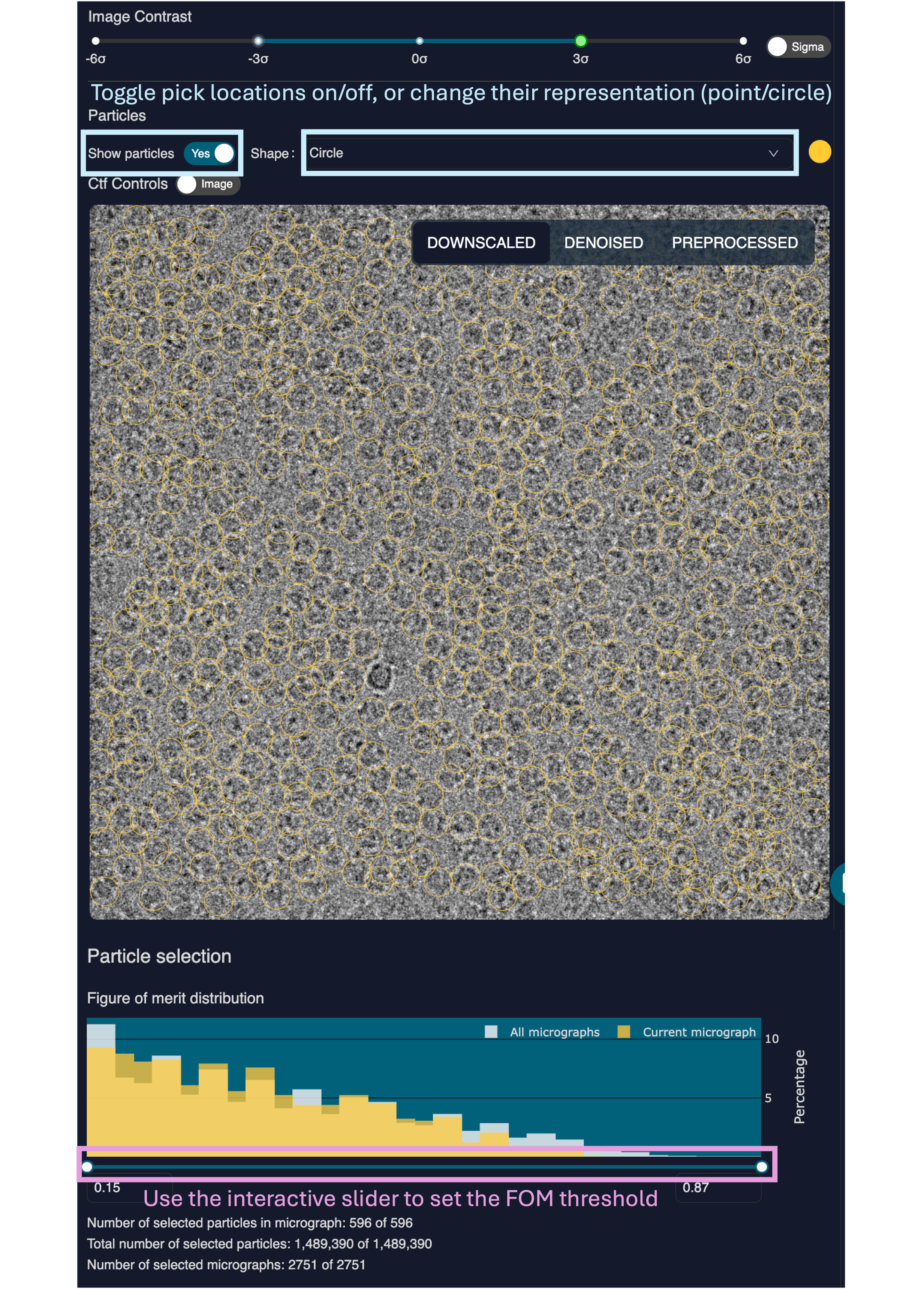
Similarly, particle picks can also be curated using the interactive slider below the micrograph in the main window. Particle picks can be toggled on and off, and their representation can be changed from circles to points to aid inspection.
Recommended next step
• Particle extraction